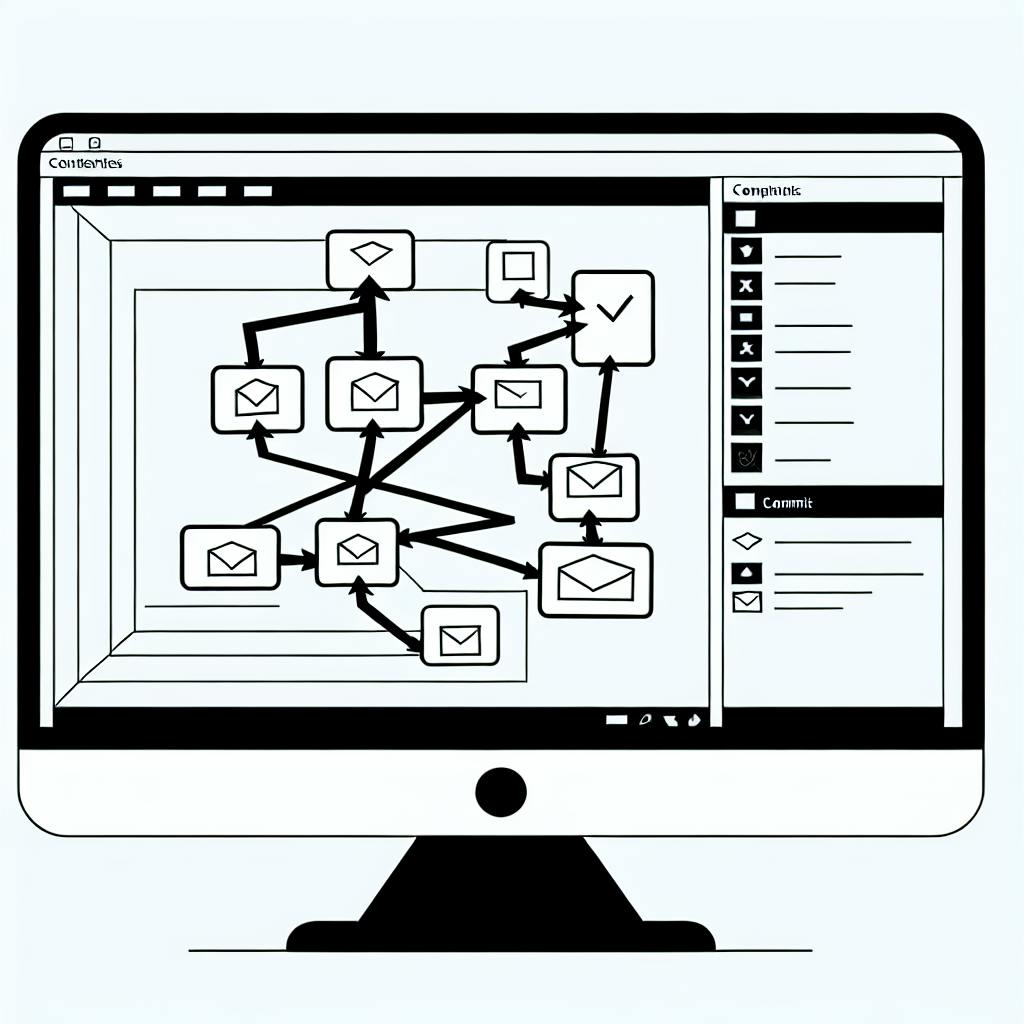
When teams from different departments work together, disorganized files and endless email chains can waste time and create confusion. On average, U.S. workers lose 2 hours daily - or 25% of their workweek - just searching for documents. A centralized document-sharing system can solve this by acting as a single source of truth, improving collaboration and security while reducing inefficiencies.
Here’s why document sharing matters and how to make it work:
- Centralized Access: Eliminates duplicate files and scattered email attachments.
- Real-Time Collaboration: Teams can edit, comment, and provide feedback instantly, even across time zones.
- Security: Features like role-based permissions, encryption, and audit logs protect sensitive data.
- Integration: Seamlessly connects with tools like Slack, Microsoft Teams, and project management platforms.
- Organization: Folder structures, naming conventions, and metadata make files easy to find.
Switching to a cloud-based platform improves productivity, saves time, and enhances team accountability. Whether you're managing documents for a small project or a large organization, the right tools and practices can streamline collaboration and reduce errors.
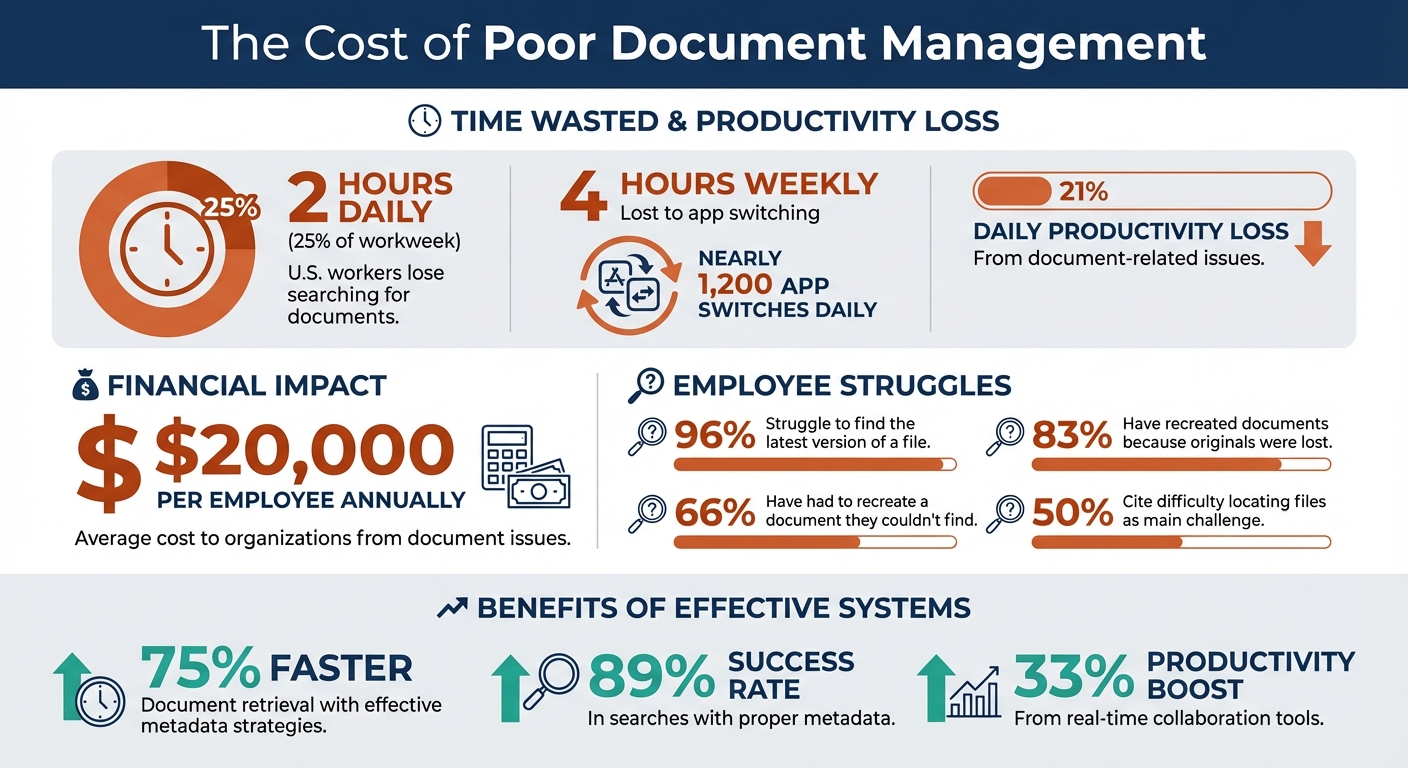
Document Management Productivity Statistics and Impact on Cross-Functional Teams
How To Use Microsoft Teams For Collaboration And Document Sharing - Microsoft Teams Tutorial 2019
sbb-itb-33eb356
What to Look for in Document Sharing Tools
Picking the right document-sharing platform can have a huge impact on team productivity. With document-related issues accounting for over 21% of daily productivity loss and costing organizations an average of $20,000 per employee each year, this decision goes beyond convenience - it's a financial necessity. The goal is to find a tool that simplifies collaboration while keeping your data secure. The right features can make real-time teamwork seamless and ensure smooth integration with the tools your team already uses.
Real-Time Editing and Collaboration
For teams working across departments, the ability to edit the same file at the same time is a game-changer. Real-time co-editing eliminates the chaos of version control and ensures everyone is working on the most up-to-date version. Imagine your marketing team updating a product brief while the engineering team simultaneously adds technical specs - no delays, no confusion.
Features like presence indicators, inline commenting, and @mentions make it easy to provide immediate feedback and avoid editing conflicts. For sensitive files, such as legal contracts or financial documents, some platforms offer auto check-out features that lock a file for single-user editing, preventing accidental overwrites. Additionally, assigning tasks directly within documents can help streamline accountability and keep projects on track.
"Google Docs is for document sharing what Slack is for team communication. Overall, it is a godsend for document productivity in a team setting." - Capterra Review via Björn Michelsen, CEO, Nuclino
Integration with Your Current Tools
Switching between apps all day is a productivity killer. On average, workers toggle between apps nearly 1,200 times daily, losing about four hours of work each week. A document-sharing platform that integrates with your existing tools can help reclaim that lost time.
For example, integrations with Slack, Microsoft Teams, or Google Meet let you share and discuss files without leaving your communication platform. Project management tools like Jira, Asana, or Trello can link documents directly to tasks, ensuring the right files are always accessible where the work is happening. This reduces context switching and keeps teams focused.
CRM integrations, such as with Salesforce, are another big plus - they tie documents directly to customer records and workflows, giving teams a complete view of client interactions without extra manual effort. If your team relies on Microsoft 365, tools like OneDrive and SharePoint make co-authoring effortless. For those in Google's ecosystem, the seamless connection between Drive, Docs, and other Workspace apps ensures everything works together smoothly.
With the right integrations, your document-sharing tool can become more than just a file repository - it can serve as a central hub where work flows naturally. And while integrations drive efficiency, security ensures that collaboration remains safe.
Security and Access Controls
When it comes to document sharing, security is non-negotiable. Features like role-based permissions, end-to-end encryption, and audit logs are essential for protecting sensitive data while still enabling collaboration.
Role-based permissions allow you to control who can view, edit, comment on, or download files. For instance, you might give external contractors "Restricted Editor" access, allowing them to make changes without inviting others or downloading files in bulk. End-to-end encryption protects your data both in transit and at rest, while two-factor authentication (2FA) and single sign-on (SSO) add additional security layers.
Audit logs provide transparency by tracking every action taken on a document - who accessed it, what changes were made, and when. This is especially important for meeting compliance requirements like HIPAA or GDPR. Temporary collaborations can also be managed securely with features like password-protected links, file expiration dates, and access expiration settings.
| Role | View | Edit | Share | Bulk Download | Best For |
|---|---|---|---|---|---|
| Admin | ✅ | ✅ | ✅ | ✅ | Department heads managing team resources |
| Editor | ✅ | ✅ | ✅ | ✅ | Core team members on active projects |
| Restricted Editor | ✅ | ✅ | ❌ | ❌ | External contractors or temporary collaborators |
| Viewer | ✅ | ❌ | ❌ | Some | Stakeholders needing visibility without editing |
| Previewer | ✅ | ❌ | ❌ | ❌ | External reviewers requiring web-only access |
It's crucial to choose a platform with straightforward security features. If the system is too complex, employees may resort to less secure alternatives like consumer-grade tools or email, creating shadow IT risks and exposing your organization to potential data breaches.
How to Organize Shared Documents
Disorganized documents can be a major productivity killer. According to research, 96% of employees struggle to find the latest version of a file, 83% have had to recreate documents because the originals were lost, and nearly half waste time digging through emails and chat threads to locate files. The key isn't just better search tools - it’s about creating a system that makes finding documents straightforward from the start. Here are some strategies to keep your shared documents organized and easy to access.
Creating Folder Structures and Naming Standards
Design your folder structure with workflows in mind, not just your internal hierarchy. Group folders by key business areas like clients, projects, or functions. For instance:
Client A > Website Redesign > Assets
This approach makes it easier for cross-functional teams to navigate without needing to understand your internal setup.
Keep folder hierarchies shallow - aim for most files to be accessible within three or four clicks from the root folder. Avoid overly nested folders that require endless clicking. To arrange files logically, use numbered prefixes with leading zeros (e.g., 01_Research, 02_Drafts, 03_Finals). For time-sensitive projects, status tags like [Archive], [Final], or [External] can help teams quickly identify the right files.
Consistent file naming conventions are essential. A format like [Project]_[DocumentType]_[Date]_[Version] (e.g., Acme_Brief_2026-02-20_v2.docx) ensures clarity. Using the YYYY-MM-DD date format helps files sort chronologically. Avoid special characters (like &, %, #, /), and stick to PascalCase (e.g., ProjectProposal) or CamelCase for readability.
Consider adding a "START HERE" file at the root of your folder structure. This file can explain acronyms or shorthand used in file names, making it easier for new team members to understand. As DocuXplorer puts it:
"A strong folder structure doesn't have to be perfect, but it should be clear, consistent, and scalable".
To prevent data loss, keep files in shared workspaces instead of individual "My Drive" accounts. This ensures continuity when employees leave and gives everyone on the team the access they need. A well-organized system not only saves time but also improves collaboration across teams.
Adding Metadata and Tags
While folders provide broad organization, metadata and tags allow for more precise classification without creating an overwhelming number of subfolders. Metadata acts like a digital filing system, making it easier to locate documents quickly. In fact, companies using effective metadata strategies report 75% faster document retrieval and 89% success rates in searches.
Focus on three main types of metadata:
- Descriptive metadata: Includes titles, authors, subjects, and keywords.
- Administrative metadata: Covers creation dates, file formats, version numbers, and security settings.
- Structural metadata: Tracks departmental ownership, document types, project IDs, and workflow stages (e.g., "In Review" or "Approved").
Tags also allow a single document to be associated with multiple categories, enabling more detailed searches. To maintain consistency, use dropdown menus or multi-select fields instead of free-text entries for tagging. A tagging guide that defines standard tags and their meanings can help everyone stay on the same page. Adding "Verified" labels to approved documents ensures teams can easily identify authoritative sources.
Many modern systems now include AI-powered auto-tagging, which can automatically categorize files, extract key details like names and dates, and suggest tags based on content. As Sarah Chen, Information Architecture Director at Ademero, explains:
"Good metadata turns documents from isolated files into connected, discoverable, and actionable business assets".
Connecting Documents to Project Tasks
integrating documents with low-code CRM integration and task management tools like Jira, Asana, or Trello can eliminate the need to search for files entirely. Many platforms now offer project modules that consolidate updates, goals, and deliverables in one place, cutting down on scattered email threads.
For example, when a designer uploads a mockup to a task labeled "Homepage Redesign", that file becomes linked to the task's timeline, assignees, and deadlines. Built-in commenting features allow team members to discuss specific sections without disrupting the workflow, while annotations can highlight specific issues or insights within the document.
To avoid confusion over versions, share links to live documents instead of sending attachments via email. As Jason Hein, Founder of Acumental B2B, puts it:
"This is going to sound like I'm being dramatic, but it [version control] can be the difference between life and death".
For video files or recordings, sharing links with custom start times can direct collaborators to the exact moment they need to review.
Managing Security and Compliance
Effective security and compliance measures are essential for safe and regulated file sharing across departments and with external partners. When files move between teams or outside the organization, controlling access is crucial. A single oversight, like a misconfigured permission or an expired guest account, can lead to data exposure. The solution lies in creating a security framework that adapts to your team’s needs while meeting all necessary regulations.
Setting Up Role-Based Permissions
Modern tools offer a unified permission model for apps like files, email, chat, and tasks, reducing the risk of security gaps. Permissions applied at the folder level cascade automatically to subfolders and new files, saving time and ensuring consistency.
For particularly sensitive files, like contracts or private discussions, you can implement item-level restrictions to override broader permissions. Sensitivity labels (e.g., "Highly Sensitive") can be used to enforce encryption and restrict guest sharing based on classification. To further tighten security, limit site access to team members only.
Delegate user management to team leads, giving them the ability to adjust permissions without full administrative access. For collaborators who need to edit but not reshare or download files in bulk, assign them "Restricted Editor" roles. Default sharing links should be set to "Specific People" or "People with existing access" to minimize accidental oversharing.
| Role | View | Edit | Share | Bulk Download | Description |
|---|---|---|---|---|---|
| Admin | ✅ | ✅ | ✅ | ✅ | Full control over content and settings. |
| Editor | ✅ | ✅ | ✅ | ✅ | Standard collaboration role. |
| Restricted Editor | ✅ | ✅ | ❌ | ❌ | Can edit but cannot reshare or perform bulk actions. |
| Viewer | ✅ | ❌ | ❌ | Limited | Read-only access; can print or attach. |
| Previewer | ✅ | ❌ | ❌ | ❌ | Online/web-only view; no download capability. |
Once permissions are in place, focus on managing document versions and retention policies to maintain control over your data.
Managing Document Versions and Retention
Tracking document versions and enforcing retention policies help prevent data loss and confusion. Statistics show that 66% of employees have had to recreate a document because they couldn’t find the original, and 50% cite difficulty locating files as their main challenge with digital documents. Centralizing all versions in a shared repository, rather than scattering them across emails or local drives, ensures teams work with the most up-to-date files.
Use systems that automatically save previous versions instead of overwriting files, making it easier to recover older versions and maintain a clear change history. Apply retention labels to mark items as "records" or "regulatory records", restricting unauthorized edits or deletions. Retention periods can be triggered by specific events, like project closure or contract expiration, rather than just the file’s creation date.
As ShareFile highlights:
"Document version control provides a powerful solution, enabling teams to collaborate seamlessly and maintain a single source of truth".
Organize archived documents in separate folders or labels to keep active storage uncluttered. Schedule quarterly or bi-annual reviews of your version control and retention processes to identify areas for improvement. Detailed audit trails are also key for demonstrating compliance and maintaining accountability.
Next, focus on securing external collaborations by implementing strict access guidelines.
Sharing Documents with External Partners
When sharing files with external partners, extra precautions are essential. Require multi-factor authentication (MFA) for guests, as they often use personal email accounts that lack corporate-level security policies. You can also mandate that external users accept a digital "Terms of Use" agreement before accessing shared files or sites.
Conduct periodic access reviews (e.g., quarterly) to ensure external users don’t retain permissions longer than necessary for their projects. For unmanaged devices, restrict guests to web-browser access to prevent file downloads onto non-corporate hardware. Use sensitivity labels to classify content and automatically apply encryption or restricted permissions, ensuring only authorized users can access the files.
To avoid accidental sharing with unauthorized parties, limit sharing to specific trusted partner domains. Set default sharing links to "Specific people" for external access, and if unauthenticated sharing is unavoidable, enforce a mandatory expiration date on the links.
For collaborative work with external teams, shared channels allow partners to use their own corporate credentials, reducing the need to manage guest accounts. Implement conditional access policies requiring external users to re-authenticate daily, which minimizes risks from stolen sessions.
Building Workflows Around Document Sharing
Incorporating document sharing into daily routines can streamline collaboration and eliminate inefficiencies. By organizing files and prioritizing security, structured workflows not only improve productivity but also help unify team efforts across departments.
Using Comments and Feedback Tools
Comments are a powerful way to facilitate discussions before implementing changes. Instead of making direct edits, use inline comments to suggest ideas and build consensus - this is particularly useful for sections that require input from multiple stakeholders.
Keep feedback organized by creating contextual threads tied directly to specific sections or files. This prevents communication platforms like email or Slack from becoming overcrowded. For non-text assets like blueprints, images, or videos, annotation tools can highlight specific areas needing attention. Once feedback is addressed, mark comments as "resolved" to signal progress without altering the overall document status.
Running Live Editing Sessions
While asynchronous feedback is helpful, live editing sessions can speed up decision-making and ensure alignment. Studies show that using real-time collaboration tools can boost team productivity by as much as 33%. Assign clear roles, such as editors and reviewers, before the session starts. Use visual indicators like user avatars or "live edit" modes to avoid overlapping edits and errors.
For more complex changes that are hard to address with text alone, integrate audio or video tools like Slack Huddles or Google Meet directly into the document. Take regular pauses to review updates and ensure the document remains clear. Encourage team members who are reviewing, not editing, to switch to "view only" mode to prevent accidental changes.
Monitoring Progress and Identifying Delays
Centralized dashboards and status indicators provide a clear view of tasks and progress across teams. Replace long email chains by updating document statuses - like "In Progress", "Needs Review", or "Approved" - within a shared project dashboard. Automated alerts can notify stakeholders when their input is needed, reducing bottlenecks and keeping deadlines on track.
Real-time activity logs and version histories enhance accountability by showing who made changes and when. Use "pinning" features in communication tools to keep important or frequently delayed documents visible in project channels. Regularly review document analytics to pinpoint workflow bottlenecks and adjust deadlines or responsibilities as needed.
"Analytics and reporting tools help teams identify inefficiencies and refine workflows through continuous optimization, allowing them to remain agile".
Conclusion
Document sharing has transformed how teams collaborate across functions, but success depends on thoughtful implementation. Transitioning from a mess of email attachments to a centralized system eliminates version issues and ensures everyone has access to the most up-to-date information.
To sustain these benefits, clear governance is key. Effective governance practices - such as standardized naming conventions, well-organized folder structures, defined document ownership, and role-based access - help prevent shared drives from turning into unmanageable clutter. Security measures like two-factor authentication, data encryption, and expiring external links also play a critical role in protecting sensitive information.
"The way your team collaborates on documents reflects how it collaborates overall." - Vikas Tiwari, AllyMatter
Equally important is how well the document-sharing platform integrates with existing workflows. Tools that connect seamlessly with apps like Slack or Microsoft Teams minimize the constant back-and-forth between applications, a habit that can lead to nearly 1,200 app switches per day. Training is also crucial; teams need to understand not just the mechanics of the tools but the reasoning behind specific practices and their impact on the organization.
To get started, evaluate your current document management system for inefficiencies. Identify where files get lost, permissions slow progress, or duplicate work occurs. Then, tackle one improvement at a time - introduce naming conventions, assign document owners, or schedule regular maintenance reviews. For organizations looking to streamline workflows further, the Low Code Platforms Directory can help identify platforms with features like collaboration and automation. Even small, consistent changes can lead to noticeable productivity improvements.
FAQs
What’s the fastest way to reduce version chaos across teams?
To cut down on version chaos, stick to consistent document version control practices. Start by using a centralized repository where all files are stored and accessed. Implement a clear versioning system - something as simple as naming files with version numbers or dates can make a big difference. Be sure to document changes transparently, so everyone knows what's been updated and why.
Leveraging automated tools can also help. Tools that track versions and manage access controls ensure everyone is working on the most recent version, minimizing errors and confusion. These straightforward steps can make collaboration smoother and boost team efficiency.
How do we share files with outside partners without risking data leaks?
To safely share files with external partners and minimize the risk of data leaks, it's crucial to use encrypted file-sharing tools that offer controlled access and permission settings. Skip using unprotected links or email attachments, as they can expose sensitive information. Instead, opt for encrypted links, sensitivity labels, and access controls to ensure that only authorized individuals can view or edit the files.
For extra protection, choose platforms that support real-time permission management and encryption. This way, you can adjust access instantly and keep your data secure at all times.
What folder and naming rules should we standardize first?
Creating clear and descriptive naming conventions for folders and files is a simple yet powerful way to stay organized. Use functional labels instead of vague or personal names - this ensures everyone understands the purpose of each file or folder at a glance. Including dates in a consistent format, like YYYY-MM-DD, can make sorting and searching much easier.
Once you've established these standards, document them and share them with your team. This way, everyone is on the same page, and file retrieval becomes faster and more efficient for everyone involved.